> For the complete documentation index, see [llms.txt](https://docs.adti.camera/adti-45cmf-module-quick-start-guide/llms.txt). Markdown versions of documentation pages are available by appending `.md` to page URLs; this page is available as [Markdown](https://docs.adti.camera/adti-45cmf-module-quick-start-guide/mavlink-and-geo-tagging-qgroundcontrol-1.md).
# MAVlink and Geo-tagging (QGroundControl) #1
This page will show you how to connect the camera to pixhawk for geo-tagging the photos.
The ADTi 45CMF cameras support standard NMEA message geotagging to the photo Exif information. Baseon the pixhawk output NMEA, which connects to the ADTi 45CMF camera via a ADTi POS Unit for direct geotagging, the following will guide you through how to connect the hardware and set the pixhawk parameters.
Also ADTi 45CMF combines with ADTi POS Unit, is compatible with MAVlink, so User can remote control the camera functions by Qgroundcontrol.
1. **Hardware Connections , you will need:**
1)Pixhawk Flight control
2\) ADTi 45S V1 Camera
3\) ADTi POS Unit [(Camera POS & CTRL Units)](https://www.adti.camera/product-page/camera-pos-ctrl-units-for-direct-geotagging)
4\) Cable for connecting the camera
5\) Cable for connecting the flight controller
2. **Wiring diagram:**
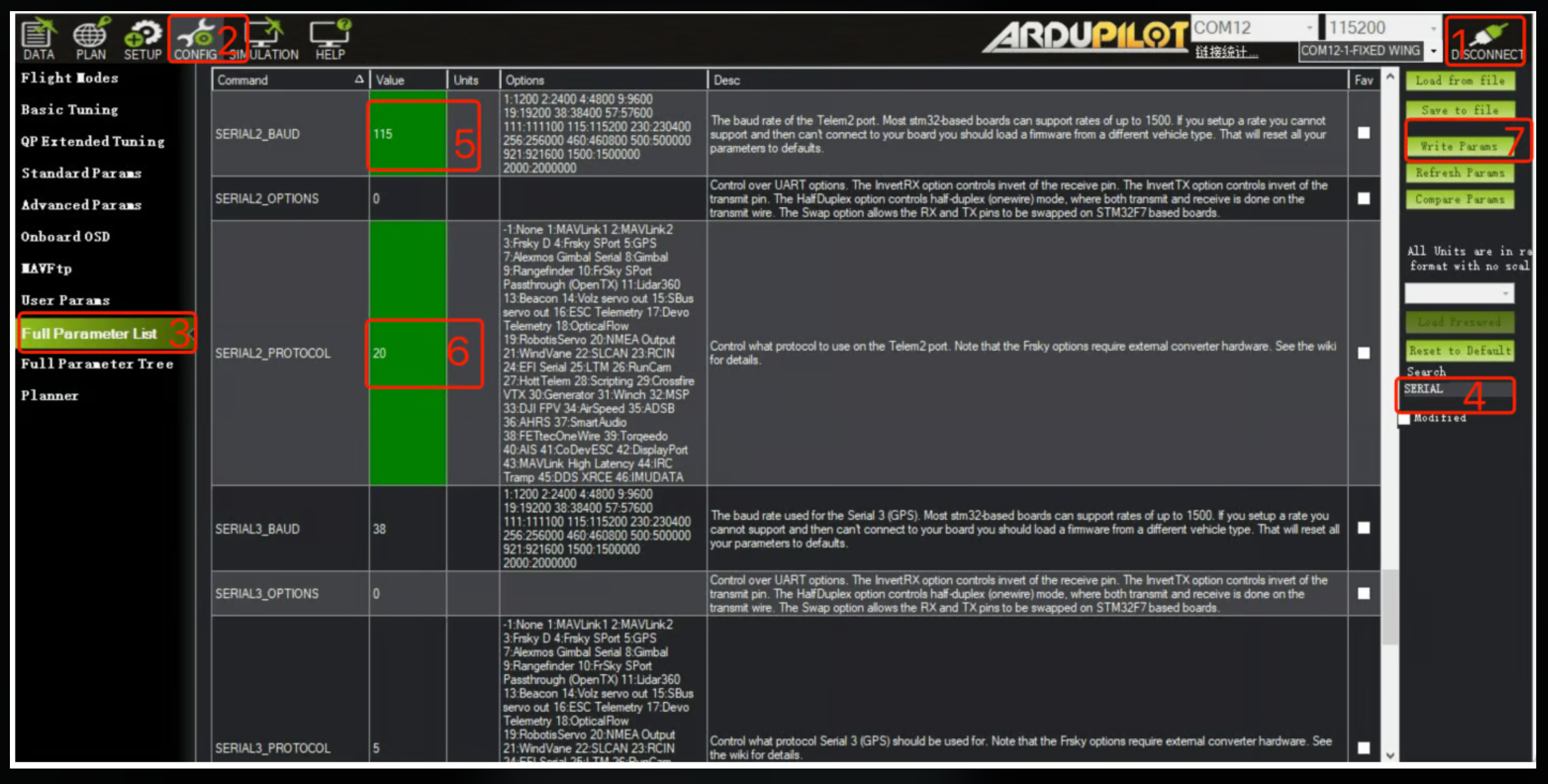
3. **Set Pixhawk Parameters:**
CommentShare feedback on the editorConnect the Pixhawk USB to the computer, open Mission Planner and click Connect, click on the **CONFIG tab**, select Full Parameter List, search for **SERIAL\_2** in the Search box on the right, after change parameters click the Write Params to save the settings.CommentShare feedback on the editorBelow is an example of the Ardupilot plane 4.4.4 firmware:
After completing the above operations, please restart the flight controller. Also note! GPS NMEA information only have data output when satellites are available, if you need to test this function, please place the drone in an open area and wait for the satellite positioning before taking a picture for a test, the ADTi POS Unit will detect the HOTSHOE signal and geotag the current latitude and longitude altitude information to each photo's Exif information.
GPS directly Geo-tagging photo (exif)-photo review sample as below
---
# Agent Instructions
This documentation is published with GitBook. GitBook is the documentation platform designed so that both humans and AI agents can read, navigate, and reason over technical content effectively. Learn more at gitbook.com.
## Querying This Documentation
If you need additional information that is not directly available in this page, you can query the documentation by asking a question.
Perform an HTTP GET request on the following URL with the `ask` and `goal` query parameters:
```
GET https://docs.adti.camera/adti-45cmf-module-quick-start-guide/mavlink-and-geo-tagging-qgroundcontrol-1.md?ask=&goal=
```
`ask` is the immediate question: it should be specific, self-contained, and written in natural language.
`goal` is what the user is ultimately trying to achieve, the reason they need the answer. Sharing it helps GitBook give you a better, more relevant answer. A goal is most helpful when it describes the outcome the user wants rather than restating the question. For example, with `ask=how do I create an API token`, a goal like `automate deployments from our CI pipeline` lets GitBook tailor the answer to that use case.
The response will contain a direct answer to the question and relevant excerpts and sources from the documentation.
Use this mechanism when the answer is not explicitly present in the current page, you need clarification or additional context, or you want to retrieve related documentation sections.