# Package List

This is a quick start guide for ADTi 20L and 24L V1, which has the most usefull information that you need to setup your 20L OR 24L V1 at first time, please let us know if you still have questions.

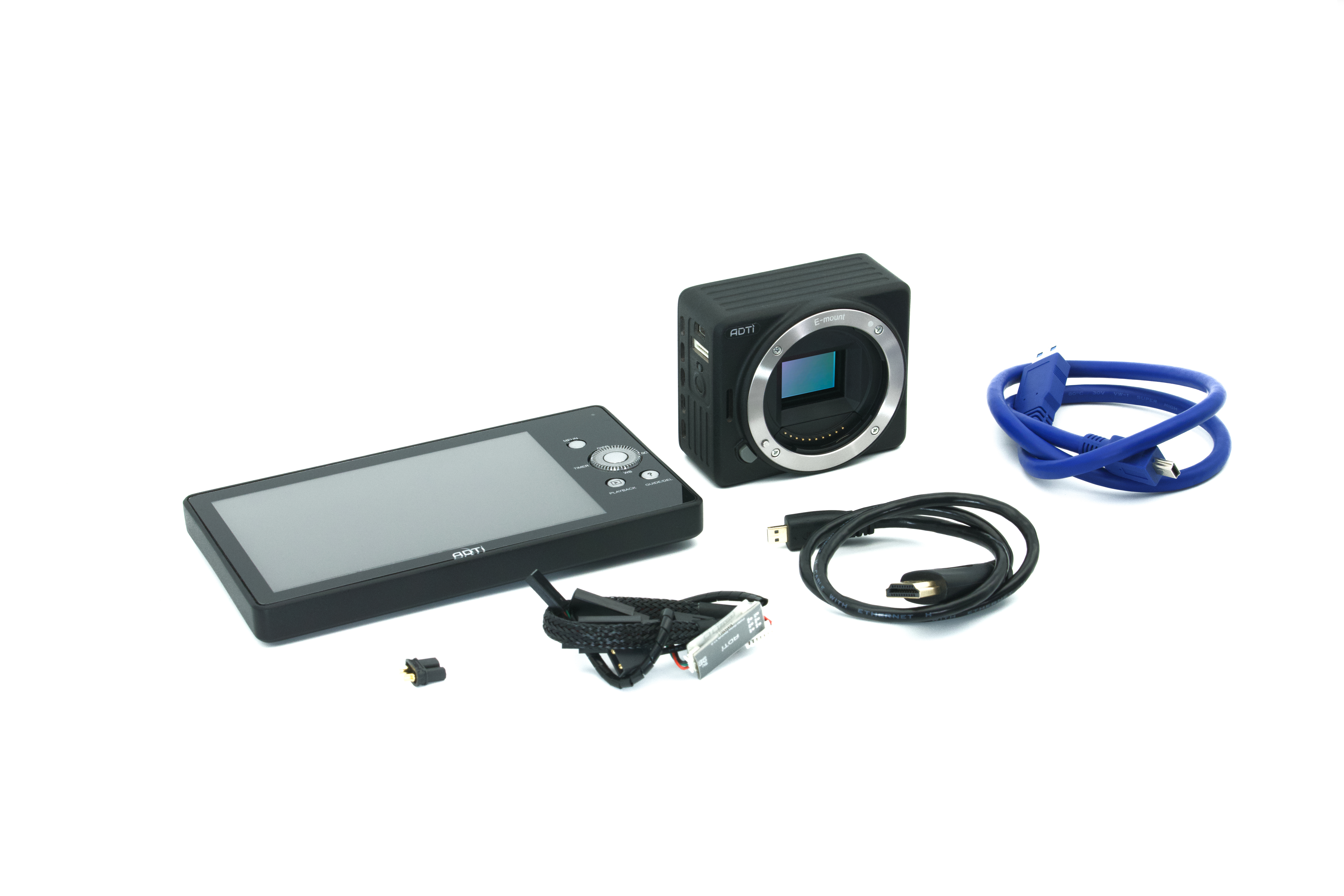
<figure><img src="https://1188996718-files.gitbook.io/~/files/v0/b/gitbook-x-prod.appspot.com/o/spaces%2FRhFrv15WYL5VnCVr2Lc7%2Fuploads%2Fqvez3WzwPdiZXSCCT0mR%2F7R400187.jpg?alt=media&amp;token=3e203a33-9c5c-4514-810b-87d19abe245f" alt=""><figcaption><p>you should have the camera and accessories shows in the above photo, if you are missing anything, please contact us.</p></figcaption></figure>


# Camera Engineering Drawing#1

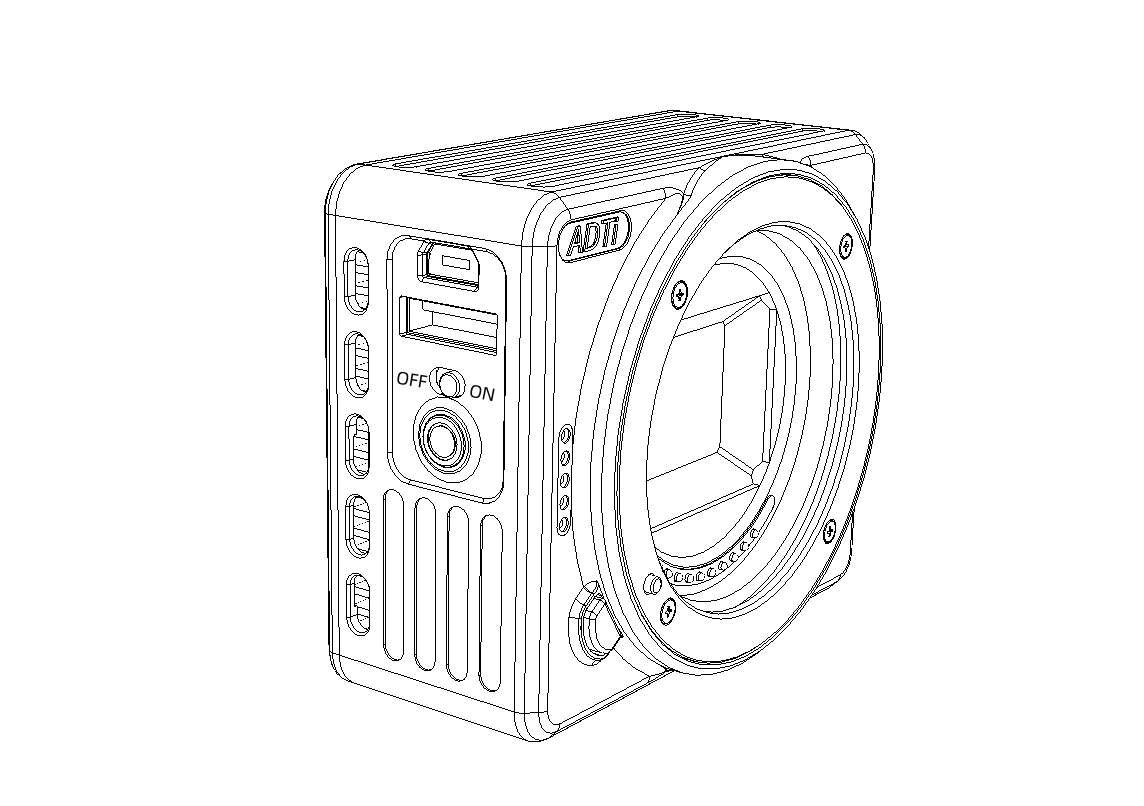
This page shows the 20L & 24L V1 cameras engineering drawing, 20L &24L V1 cameras have same design features except the camera effective resolution and shutter speed.

<figure><img src="https://1188996718-files.gitbook.io/~/files/v0/b/gitbook-x-prod.appspot.com/o/spaces%2FRhFrv15WYL5VnCVr2Lc7%2Fuploads%2FlaiCbK7rvzrXbj9ExSXk%2F1695796403918.jpg?alt=media&amp;token=115f1c9b-caf7-4852-bad9-a19784f31292" alt=""><figcaption></figcaption></figure>


# Camera Engineering Drawing#2

This page shows the 20L & 24L V1 cameras engineering drawing, 20L &24L V1 cameras have same design features except the camera effective resolution and shutter speed.

<figure><img src="https://1188996718-files.gitbook.io/~/files/v0/b/gitbook-x-prod.appspot.com/o/spaces%2FRhFrv15WYL5VnCVr2Lc7%2Fuploads%2FC4CUpqEwAz74LxJ4cpGF%2F1695796921208.jpg?alt=media&amp;token=64e9821d-8ba1-4f6c-a355-83c0aec564fe" alt=""><figcaption></figcaption></figure>

<figure><img src="https://1188996718-files.gitbook.io/~/files/v0/b/gitbook-x-prod.appspot.com/o/spaces%2FRhFrv15WYL5VnCVr2Lc7%2Fuploads%2F4lbQ73XEhvZ5lvTGO4Ol%2F1695796995113.jpg?alt=media&amp;token=e0b2242e-7524-412d-b046-5385869ed174" alt=""><figcaption></figcaption></figure>


# Camera Setting Display

This page shows the camera setting display engineering drawing, the display is used for changing the camera setting.

<figure><img src="https://1188996718-files.gitbook.io/~/files/v0/b/gitbook-x-prod.appspot.com/o/spaces%2FRhFrv15WYL5VnCVr2Lc7%2Fuploads%2FyzGlK4rMIjZQajViKji6%2F11_meitu_3.jpg?alt=media&amp;token=17cf2c01-5e98-4cfc-8d15-8201e4a7b4c9" alt=""><figcaption></figcaption></figure>


# Power the Camera#1

Power the camera by connecting the VIN and GND wih 3-6S lipo battery.

10-25V DC power supply

VIN  = 10-25V&#x20;

GND= Ground

<figure><img src="https://1188996718-files.gitbook.io/~/files/v0/b/gitbook-x-prod.appspot.com/o/spaces%2FRhFrv15WYL5VnCVr2Lc7%2Fuploads%2FhZ6EqxFu6sJRXSEYT02a%2Fpage_1.png?alt=media&amp;token=9a75ba44-2601-43b7-bdf0-a338c484db3d" alt=""><figcaption></figcaption></figure>

{% hint style="info" %} <mark style="color:red;">**DO NOT!**</mark>&#x20;

Do not power the camera with any power supply that provides more than 25 V, as it may damage the camera.&#x20;

Do not power the camera via 5V out ports, as it may damage the camera.

Do not power the camera using high noise, high frequency, high amplitude energy and unstable AC-DC power supply (most common AC adapters), unless your engineering team can do specific custom made AC-DC that generates very low noise, low frequency, low amplitude energy, also stable voltage in the circuit, do not recommand wall AC-DC adapter due to the unregulated power supply.
{% endhint %}

<figure><img src="https://1188996718-files.gitbook.io/~/files/v0/b/gitbook-x-prod.appspot.com/o/spaces%2FRhFrv15WYL5VnCVr2Lc7%2Fuploads%2FVZX9ocubOUBb2oK0ZKgW%2FADTi%20surveyor%20Lite%201.png?alt=media&amp;token=2195d533-969d-40c8-9f70-cd38ee4f6163" alt="" width="563"><figcaption><p>make sure the OFF/ON Swtich to ON to turn on the camera.</p></figcaption></figure>


# Power the Camera#2

Do not power the camera by USB cable via the multi terminal port.

<figure><img src="https://1188996718-files.gitbook.io/~/files/v0/b/gitbook-x-prod.appspot.com/o/spaces%2FRhFrv15WYL5VnCVr2Lc7%2Fuploads%2F7Yt7qllAAOgUyC62w25h%2FScreenshot%20(36)_meitu_9.jpg?alt=media&amp;token=12c2eaff-66f5-479c-a485-8e6f2f5fa18f" alt=""><figcaption></figcaption></figure>


# Connect the Camera Trigger

The 20L or 24L V1 camera has relay trigger for the camera multi-cable.

There is a Replay -to-PWM module in the camera box, It is used to convert Relay (TTL) to PWM triggering. (see below photo)

<figure><img src="https://1188996718-files.gitbook.io/~/files/v0/b/gitbook-x-prod.appspot.com/o/spaces%2FRhFrv15WYL5VnCVr2Lc7%2Fuploads%2FrdUysA4tRpCHswHlWdNi%2Ffe5a562876261cc0575ad9cddec0215.png?alt=media&amp;token=aa649f68-579b-4a82-bcb5-e8500505ff7f" alt="" width="375"><figcaption></figcaption></figure>

<figure><img src="https://1188996718-files.gitbook.io/~/files/v0/b/gitbook-x-prod.appspot.com/o/spaces%2FRhFrv15WYL5VnCVr2Lc7%2Fuploads%2FCXgx8koYwxAyRV8yIGmQ%2Fa495bfafdd275b9398737d4c3014d51_%E5%89%AF%E6%9C%AC.png?alt=media&amp;token=c39cff37-1be4-4133-8a7f-3e8d0af55164" alt="" width="563"><figcaption></figcaption></figure>

WITHOUT the Replay -to-PWM module, if user connect the shutter and GND ports directly to flight controller, then it is Relay (TTL) triggering.


# Trigger the Camera

This page will show how to test the camera triggering manually OR by Autopilots.

The camera is powered on, you can test the camera trigger by manually pressing the shutter button.

<figure><img src="https://1188996718-files.gitbook.io/~/files/v0/b/gitbook-x-prod.appspot.com/o/spaces%2FRhFrv15WYL5VnCVr2Lc7%2Fuploads%2FvlkrpLqDMArqniAhIVLS%2FADTi%20surveyor%20Lite%201_meitu_1_%E5%89%AF%E6%9C%AC.jpg?alt=media&amp;token=2171b014-fac1-4892-bc2c-070c44f6ee64" alt="" width="252"><figcaption></figcaption></figure>

Please check Portal [<mark style="color:red;">\[ADTI PX4 or Ardupilot Setup\]</mark>](https://docs.adti.camera/adti-camera-px4-or-ardupilot-setup/)<img src="https://1188996718-files.gitbook.io/~/files/v0/b/gitbook-x-prod.appspot.com/o/spaces%2FRhFrv15WYL5VnCVr2Lc7%2Fuploads%2FI0jPhNnVlORzyR4Md7GG%2Fimage.png?alt=media&amp;token=50007dc0-a370-45ea-81db-dac94ccdac21" alt="" data-size="line"> for triggering camera by autopilot.


# Insert a SD Card#1

This Page will show you how to insert a SD card, also format the SD card as the camera wanted.

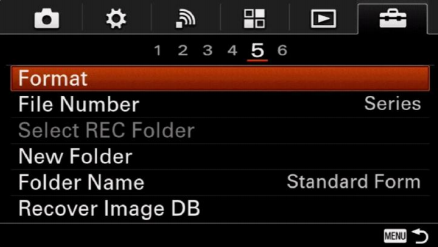
Insert the SD card into your Camera. Once it's in, go to the menu and find the format option.

It's always best to format a SD or TF card within the ADTi cameras that will use it. Not only does this help ensure compatibility, but it also sets a block size that is optimized for the cameras. Format in your camera to minimize the potential for image loss and file corruption.

<figure><img src="https://1188996718-files.gitbook.io/~/files/v0/b/gitbook-x-prod.appspot.com/o/spaces%2FRhFrv15WYL5VnCVr2Lc7%2Fuploads%2FMnphPTtu5IWcg0FthZLe%2F1695887102370.jpg?alt=media&amp;token=a1910823-87ce-4eaf-9d56-3505c677c6ef" alt=""><figcaption></figcaption></figure>


# Insert a SD Card#2

Format a SD or TF Card in your camera as following:

<figure><img src="https://1188996718-files.gitbook.io/~/files/v0/b/gitbook-x-prod.appspot.com/o/spaces%2FRhFrv15WYL5VnCVr2Lc7%2Fuploads%2FOVvsYZWV0ndlgUQGeAXZ%2F1695887282108.jpg?alt=media&amp;token=615a194c-20a2-43ab-8f5f-63a225ee7edb" alt=""><figcaption></figcaption></figure>

<figure><img src="https://1188996718-files.gitbook.io/~/files/v0/b/gitbook-x-prod.appspot.com/o/spaces%2FRhFrv15WYL5VnCVr2Lc7%2Fuploads%2FoB6gwrPJqYXt33XDn34B%2F1695887371149.png?alt=media&amp;token=b43d673a-e406-4d3e-bab7-436c58145ce9" alt=""><figcaption></figcaption></figure>


# Camera Settings#1

The camera setting can be changed accordingly, you need to connect a 20L or 24L V1 ADTi camera with ADTi camera display.

<figure><img src="https://1188996718-files.gitbook.io/~/files/v0/b/gitbook-x-prod.appspot.com/o/spaces%2FRhFrv15WYL5VnCVr2Lc7%2Fuploads%2FScyOgWbA9JTMCtF0P80u%2F2faccb07f0be061235254c5f2753929.png?alt=media&amp;token=c72f5fd8-a018-47f5-8e49-4f42a0cda317" alt="" width="563"><figcaption></figcaption></figure>

connect camera with display as photo above, then power the camera, the display should be powered on, then you can use the buttons and wheel on display to change the camera settings.&#x20;


# Camera Settings#2

This page will show you how to save your new camera settings.

After you set your camera new settings, use ON/OFF switch on the side of the camera to save the new settings

<figure><img src="https://1188996718-files.gitbook.io/~/files/v0/b/gitbook-x-prod.appspot.com/o/spaces%2FRhFrv15WYL5VnCVr2Lc7%2Fuploads%2F3WO2OQ1Hl0syZ9rsiiYg%2Fmmexport1574955241044_%E5%89%AF%E6%9C%AC.png?alt=media&amp;token=a98431cd-a0fb-440e-8d24-ad0bd4254a05" alt="" width="375"><figcaption></figcaption></figure>

Please note: disconnecting the camera power supply will NOT save the new settings, ON/OFF switch to save the camera new settings ONLY.


# Connect the Camera Hotshoe to PPK GNSS

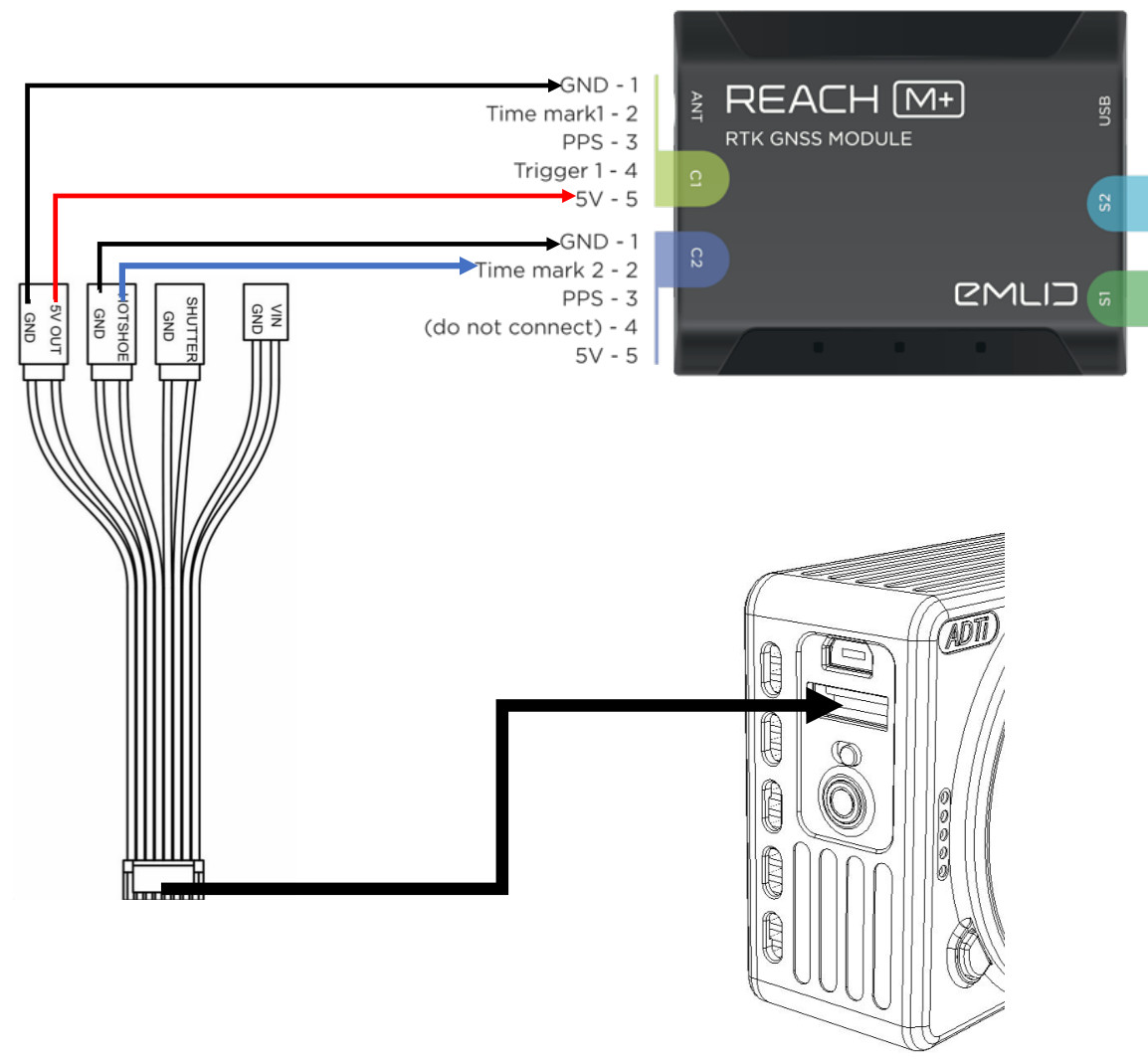
The 20L or 24L V1 camera has hotshoe pins that can connect to a PPK(RTK) GNSS unit, in this page we are going to use Emlid Reach GNSS as an example of PPK GNSS unit.

Please see the photo below shows how to connect the Emlid Reach PPK:

<figure><img src="https://1188996718-files.gitbook.io/~/files/v0/b/gitbook-x-prod.appspot.com/o/spaces%2FRhFrv15WYL5VnCVr2Lc7%2Fuploads%2FAgRViNPC5NMEsJkpjy7g%2Freach%20emlid%20with%20camera.png?alt=media&amp;token=46d0532c-2448-4a3f-bb25-ec4b9b385aa9" alt=""><figcaption></figcaption></figure>


# 20L 24L V1 3D . Step File View and Download

ADTi provides customers the 3D.step file for 20L and 24L V1 for client to view or download for their own system integration.

<figure><img src="https://1188996718-files.gitbook.io/~/files/v0/b/gitbook-x-prod.appspot.com/o/spaces%2FRhFrv15WYL5VnCVr2Lc7%2Fuploads%2FPq7LsOslNteIAgPyw559%2F1698975593716.jpg?alt=media&amp;token=43b327bb-b423-4234-9077-3262e2f6ee98" alt="" width="503"><figcaption></figcaption></figure>

we upload the 3D file on <img src="https://1188996718-files.gitbook.io/~/files/v0/b/gitbook-x-prod.appspot.com/o/spaces%2FRhFrv15WYL5VnCVr2Lc7%2Fuploads%2FiJPtXv2Xfe7yqH5CCrh5%2Fimage.png?alt=media&amp;token=fa752361-24d2-4738-906c-373efe240a3f" alt="" data-size="line">,please click below link for online view and download options:

{% embed url="<https://www.emachineshop.com/free-online-step-file-viewer/?share=M5A9eZZ>" %}